Back to Blog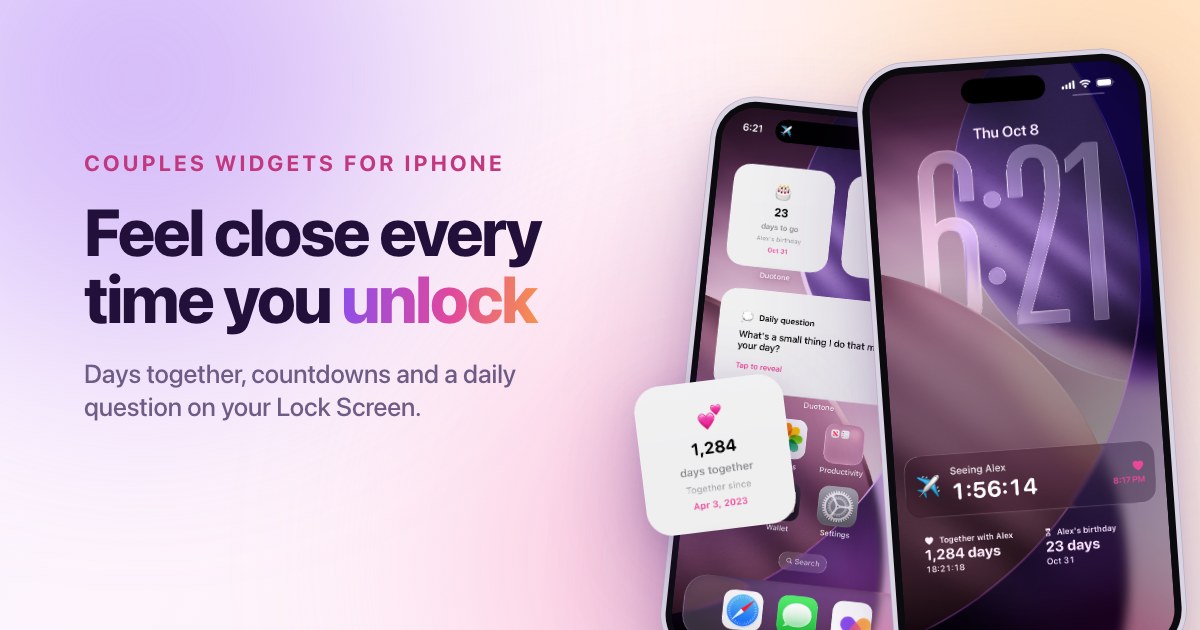
October 21, 2026
·Duotone Team
How to Put Your Days Together on Your iPhone Lock Screen (Step by Step)
A Lock Screen widget is a small reminder you see dozens of times a day. That makes it a good home for the things you want to keep in mind as a couple: how long you have been together, what is coming up, and a quick reason to smile.
What you need
- An iPhone with a Lock Screen that supports widgets (iOS 16 or later).
- Duotone installed on both phones, with you two connected.
Add a widget to your Lock Screen
- Touch and hold your Lock Screen until it switches to edit mode.
- Tap Customize, then choose the Lock Screen you want to change.
- Tap the space under the time, where widgets go.
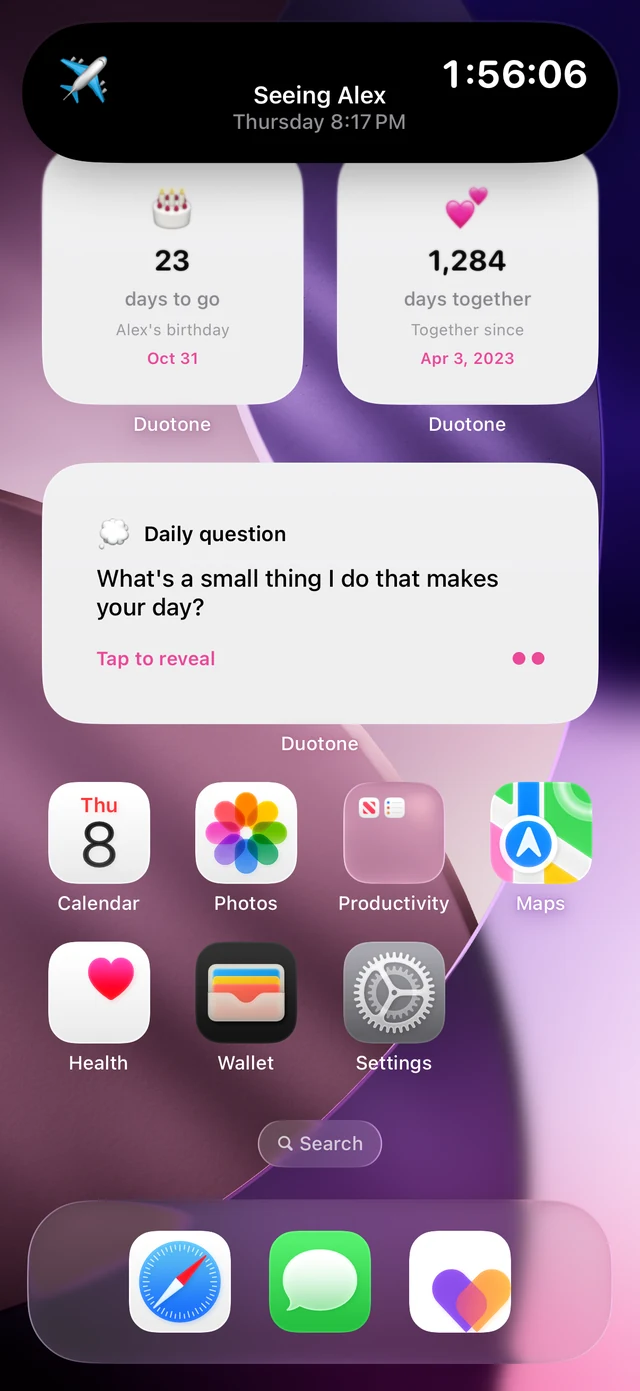
- Scroll down to Duotone and pick the widget you want: Together (days together) or Countdown.
- Tap Done.
On the Home Screen, touch and hold an empty spot, tap Edit, then Add Widget, and search for Duotone.
Which widgets work best for two
- Together: your days together, so the number is always in view.
- Countdown: the next date that matters, such as a trip, a visit or an anniversary.
- Daily question: a reason to talk tonight. Answer on your own, then reveal together.
Tips
- Keep one or two widgets. Too many make the Lock Screen busy and the important ones hard to find.
- Set your anniversary once, then turn on the yearly repeat so it counts down again each year.
- Update your countdown when plans change. A stale date is worse than no date.
If you want something else
Plenty of widget apps can count days or show a countdown, including general countdown apps. The difference with a couples app is that both of you see the same thing, and the daily question gives you a reason to talk.
Frequently asked questions
Does my partner need the app? Yes. Both of you need Duotone and need to be connected for the shared widgets.
Does this work on iPad? No. This guide is for iPhone.